
This article explains how taxes work specifically for Airbnb. Airbnb can be more complex for tax settings than other channels, because the possible scenarios are more complex than with other channels.
There are two concepts that are important when thinking about taxes: who collects the taxes from the guest, and who remits the taxes to the taxing authorities. Most channels will let you configure all of the taxes applicable in your area. Then, the channel will collect all of the taxes, include them in your payout, and you will remit all of the taxes.
That scenario can happen with Airbnb. But there are also more complex scenarios where Airbnb collects and remits some of the taxes and you collect and remit other taxes, or maybe they don't support collection in your area at all and you have to roll the taxes into your rates and remit them all yourself.
Wondering if Airbnb remits taxes for your area? See Airbnb's Areas where tax collection and remittance by Airbnb is available Help Center Article.
Taxes collected by Airbnb can only be paid out to the default Airbnb account payment method, regardless if the property has a different payment method configured in Airbnb.
First, read through the possible scenarios and decide which one applies to you. Then, follow the directions in the Configuration section to configure them.
We recommend remitting the taxes yourself if you can because that makes Airbnb act like other channels and simplifies how you have to report the taxes.
Tax Displays
Airbnb does not display taxes to potential guests on the Airbnb platform early in the booking process. Taxes are only displayed to potential Airbnb guests after they click on the Reserve button - basically, the last screen during the payment process. That's where the taxes finally show up.
Possible Scenarios
The first question is, does Airbnb by default collect all of the taxes in your area? In some areas, Airbnb will collect and remit all taxes, which makes things fairly straightforward. We still recommend remitting the taxes yourself if you can, but as long as Airbnb is already collecting them all, you could just let them remit them as well.
OwnerRez users that have Airbnb listings located in Mexico should note that Airbnb will always collect and remit Value Added Tax (VAT) in Mexico regardless of any passthrough tax settings set in OwnerRez.
Users should never attempt to set a passthrough tax for Mexico VAT since Airbnb will override and remit it anyway. Any Mexico VAT tax a user sets whether in Airbnb or OwnerRez will result in duplicate taxes.
If Airbnb collects some but not all taxes in your area, then you have to figure out how to collect the remaining taxes. If they support custom taxes in your area, we highly recommend using that method to collect the additional taxes that they don't. If not, OwnerRez can be configured to include the taxes in the rates pushed to Airbnb and then back them out to display them correctly in OwnerRez, but that's a lot more complex. We don't recommend or support that method if you can use custom taxes.
You can read more about what Airbnb collects by default in Airbnb's Tax Collection and Remittance article.
There are four possible modes for custom/passthrough taxes on Airbnb. You can see the mode for a property on the Airbnb Taxes dashboard in OwnerRez as described in the Testing and Verification section below.
NOTE: Airbnb chooses the mode for every listing based on the property location, and neither you nor OwnerRez have control over the tax mode. If you believe Airbnb has selected the mode for your listing in error, contact Airbnb support.
Here's what these modes mean:
Ineligible
When a listing is ineligible for custom taxes, you can't set custom taxes for it. Airbnb may or may not collect and remit certain taxes for this listing.
First, check whether they collect and remit all the taxes you need for the listing. See Airbnb's Help Center article, Areas where tax collection and remittance by Airbnb is available. If they do, you're good to go—just let them collect and remit all the taxes.
Then go to Settings > Taxes and make sure the correct taxes are configured and applicable to Airbnb. In this mode, OwnerRez will add the taxes to the rates it pushes. Then, when importing a booking, it will remove the taxes from the rate and create separate charge line items for them in OwnerRez.
None
Airbnb doesn't collect taxes; hosts can add custom taxes. If there are no taxes in your area, there's nothing to do here.
If there are taxes in your area, configure them, and Airbnb will collect them and pass them through to you for remittance.
Override
Airbnb automatically collects certain taxes and remits them. Hosts who would like to assume responsibility for remitting all taxes can opt out of Airbnb's automatic tax collection and remittance by adding their own custom taxes.
NOTE: in Override mode, tax remittance is all or nothing. If you set any passthrough taxes for Airbnb, they will collect only the taxes you set in OwnerRez -- they won't keep remitting taxes they were remitting before you set passthrough taxes in OwnerRez. Those taxes will be sent to you with your Airbnb booking payout, and you, the host, will be responsible for remitting and submitting them to your local tax authorities.
Stacked
Airbnb will collect and remit certain taxes directly to tax authorities, and will also collect any additional taxes set by the host and remit them directly to the host.
NOTE: Airbnb does not check taxes for duplication. If they're collecting a tax and you accidentally configure the same tax as a passthrough tax in OwnerRez, Airbnb will collect and remit the tax and then also collect and pass through the tax to you based on that setting.
Configuration
Now that you've seen the scenarios, you can choose how to configure them. General applicability is controlled by the Channels setting on the tax. If you set applicability to "everything but Airbnb" or don't have passthrough tax fields set, then that tax will not apply to Airbnb. Airbnb will continue to collect and remit taxes for your listings if that's what you had set in Airbnb before becoming channel integrated. This is the default behavior and it will continue to work after you become channel integrated.
However, Airbnb lets you turn this off and pay "pass-through" taxes. This means that Airbnb will collect the tax from the guest and then pass it through to you to remit to the tax authority. This makes it your responsibility to actually remit the collected tax to each appropriate taxing authority.
Airbnb only allows this in some areas, though, so first check to see if it's allowed. You can see this in the Airbnb Mode column on the Airbnb Taxes dashboard in OwnerRez as described in the Testing and Verification section below.
If pass-through taxes are allowed, return to OwnerRez and configure them using the instructions below.
⚡ WARNING:
DO NOT enable the custom taxes option directly in Airbnb! If you do it in Airbnb, the setting will be overwritten when OwnerRez syncs again.
To create a tax in OwnerRez that will go to Airbnb as a custom tax:
- Go to Settings > Taxes
- If you've already created the tax, edit it. Otherwise, create the new tax.
- If it is a pre-existing tax, make sure the Channels setting matches Airbnb as of today.
- Populate the Type, Business Tax ID, and Registration Number. All of these are required for a tax to pass through to Airbnb.
👉 Stuff to watch out for:
- If you switch to custom taxes, you must configure all of your taxes with the appropriate criteria. Make sure to check the options on the tax page in Airbnb and on the tax dashboard in OwnerRez. If the mode is
Passthrough, Airbnb won't remit any tax for you (even if they used to remit some of the taxes in your area). Airbnb will collect all of the taxes you configure and include them in your payout, and then it's up to you to remit to all of the appropriate taxing authorities. If the mode isStacked, Airbnb will continue remitting the tax they originally did and you can add additional taxes. - If this was a pre-existing tax, make sure that the Listing Sites criteria is set to All or doesn't exclude Airbnb. You may have excluded Airbnb in the past if Airbnb was remitting some or all of your taxes.
- We strongly recommend breaking out each separate taxing authority into an individual Tax in OwnerRez/Airbnb rather than combining your total percent of taxation into one tax. This will allow you to break things down by tax and run reports for different taxing bodies. Do not attempt to combine them all into one single giant "Tax" entry - it may seem easier, but if you ever get audited by the tax authorities, you'll wish you hadn't.
- Airbnb only supports flat per guest, flat per night, flat per guest and night, and percent per reservation taxes. They do not support flat per stay taxes.
- Airbnb does not support future dated rate changes -- they only support one effective rate, so the rate effective as of now will be pushed.
Tax Rate Changes
Changes to Airbnb tax rates will apply only to new bookings as they come in. They do not retroactively apply to any bookings that already exist, even if their dates of applicability would otherwise require it.
- Airbnb does not support future tax rate changes. This means that bookings placed prior to the date of the tax change will continue to be charged the current (old) tax rate until the date of the tax rate change--even if the arrival occurs in the future changed tax rate.
- The only way to collect additional taxes is by using Airbnb's Resolution Center.
Testing and Verification
Once you've configured the taxes, it's important to test them to make sure they're configured as you intended.
The first step is to go to the Taxes tab in the Airbnb channel in OwnerRez. This dashboard will show all of your connected properties and taxes, along with the mode they are in.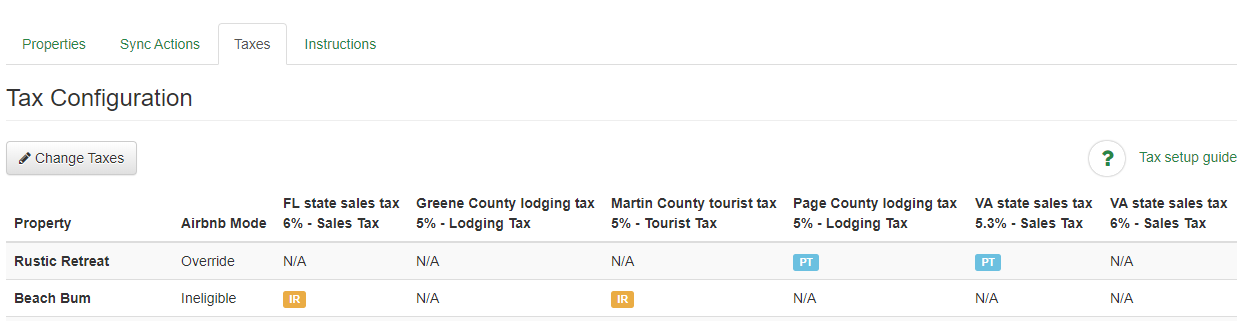
The Airbnb Mode column indicates whether you can set custom taxes on Airbnb or whether the listing is ineligible for them. Then, each tax has its own column that shows whether it's configured to be passed through to you, included in the rate, or not applicable to that listing.
If everything looks good on the tax configuration, then visit your Airbnb listing as a guest and get a quote. Make sure that it looks good as well -- all the taxes that should be included are included, and there are no extra or duplicate taxes.
Finally, keep a close eye as the first couple of bookings come in and double-check the taxes are recorded in OwnerRez as you'd expect.
Reporting
For taxes that are completely handled by Airbnb, meaning that you, the host, never see or touch taxes collected by Airbnb and Airbnb remits your collected taxes directly to your local tax authorities, tax information appears in either the individual Booking > Charges tab > Guest Channel Fees or OwnerRez Tax Reports.
However, some jurisdictions will still expect property owners to file a report of the taxes that Airbnb submitted on their behalf. OwnerRez does not have a very good way of reporting this, but tax information does appear on the Listing Site Fees Report.
See our Why do the same Airbnb taxes appear twice in the Booking > Charges tab? FAQ.