
Blog
Latest Activity...
Quick Quote enhancements, event triggers, trigger criteria, Blocked-Off Time messages, 'available property' field codes & more 11 replies
Also seems I can no longer send an email form imported booking; used to be able to pick form templates, plug in email etc , Now unable to do it.
Quick Quote enhancements, event triggers, trigger criteria, Blocked-Off Time messages, 'available property' field codes & more 11 replies

Marinas Edge said:
does the season mean the season in which the guest stayed for the trigger?It's the season that the booking occurs within.
If you set:
Send: 90 days after departure
Season: Summer
Then the trigger will send an email out 90 days for any booking that occurs in "Summer" season.
Quick Quote enhancements, event triggers, trigger criteria, Blocked-Off Time messages, 'available property' field codes & more 11 replies

Thank you. Another question on triggers and season....does the season mean the season in which the guest stayed for the trigger? For example, I want to send an email 90 days after somebody stays offering them a 15% discount if booked for a week the following summer season. How would I do this?
Quick Quote enhancements, event triggers, trigger criteria, Blocked-Off Time messages, 'available property' field codes & more 11 replies

This was a display issue on the editor. We've fixed it this morning and everything should be fine there now. It was showing the default value instead of the selected value when you went to edit, but no data was actually affected.
The fix is in place and everything should look correct in the editor now.
Quick Quote enhancements, event triggers, trigger criteria, Blocked-Off Time messages, 'available property' field codes & more 11 replies
Maybe due to this roll out, I have noticed that some of surcharges/discounts criteria got strange changes. I have cleaning fee discount if stay is 7+ nights, it was set up as :
[number of nights] GREATER OR EQUAL [7]
That criteria all of a sudden shows:
[arrival date] EQUAL TO [7 nights]
I left it as is for you to look at for now but I ill have to Erector it soon in case inquiry comes in.
Quick Quote enhancements, event triggers, trigger criteria, Blocked-Off Time messages, 'available property' field codes & more 11 replies
Hey...this is looking great! I went in to evaluate the trigger settings and noticed that a lot of my default settings have changed...instead of "Days before Arrival" on many it is "Days before booking is created".
Was this intentional? Seems like a potential error. I'm holding off on modifying until I hear back!
Thx
Quick Quote enhancements, event triggers, trigger criteria, Blocked-Off Time messages, 'available property' field codes & more 11 replies

Happy Tuesday, everyone!
Earlier today we released a large update. I want to quickly cover some of the bigger parts so that you can get a feel for what was rolled out.
Quick Quote enhancements
The ability to create a new quote, or just see rates and rules, right from the ribbon was a huge hit, and we've added a bunch more updates around that.
In addition to creating a quote, you can now create a booking or blocked-off time from the same pop-up when clicking on the ribbon calendar.
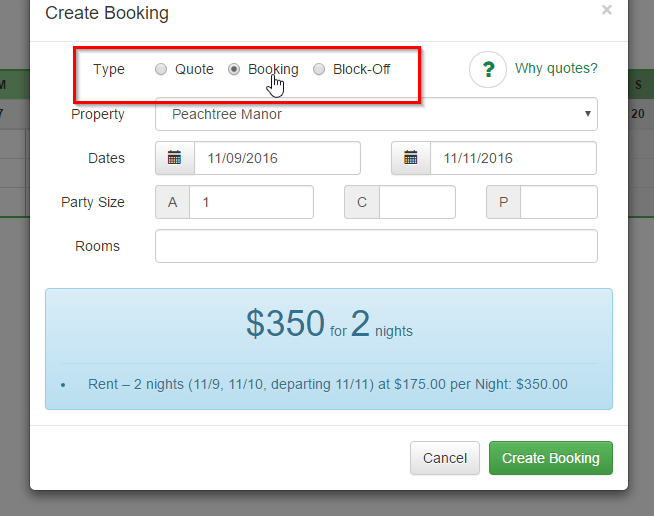
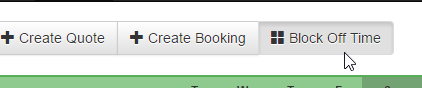
The Create Booking and Block-Off Time buttons above the calendar now open the new pop-up instead of going to a new page.
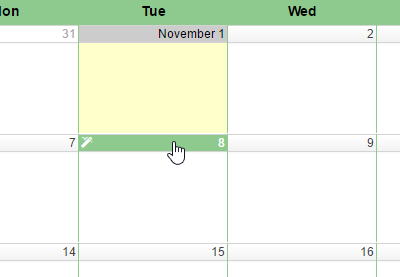
You can also open the pop-up from the Month view. No need to switch back to ribbon or click a top button. You can click on the day of the Month directly and open the pop-up from there.
We also spent a lot of time optimizing the yellow/blue instant-quote area in the pop-up to make it faster and smarter. It now shows the rates and rules for the information you've entered very quickly, with less flickering and spinning.
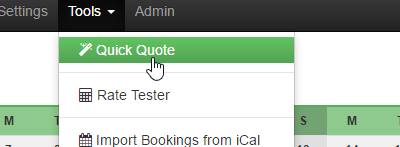
And if you're somewhere else in the app, you can also get the same fast pop-up just by opening the Tools menu at the top. No need to come back to the Bookings or Quotes menu.
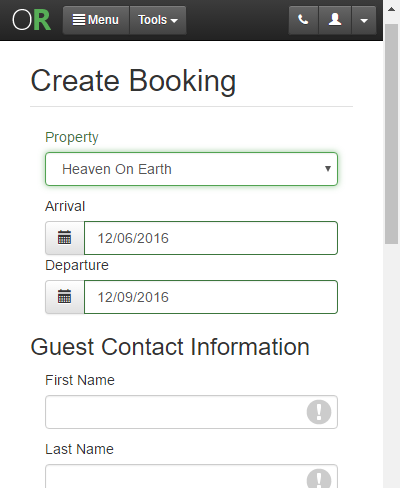
New 'Create Booking' page
If you're on the Quick Quote pop-up and you tell it to create a booking, you'll notice that it takes you to the Create Booking page which has a new look and feel. The layout is similar to the old one but the look has been updated.
One of the biggest goals in updating this page was making it responsive for tablet and smartphone sized displays. The old design was difficult to use on small devices and required a lot of zooming in and out (or eyeball squinting ;-). The new design works well on tablets and smartphones.
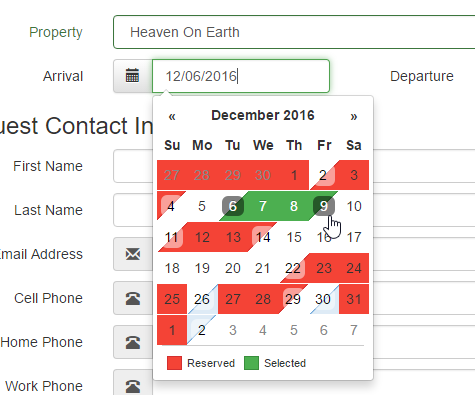
You'll also notice that the old "calendar strip" is gone when selecting dates. In its place, we've put new calendar "date pickers" that reflect the same design we use in widget and other places.
These date pickers are easier on smaller devices and they facilitate better data entry because no matter which field you pick first (arrival or departure) the first thing you select will always be arrival before departure.
We will be adding and updating other sections to this Create Bookings page - such as the ability to collect a successful payment before creating the booking - but we wanted to get this out first so that we could move away from the old layout.
You'll notice that the Block Off Time page is similarly updated. The Create Quote page will be getting the same update shortly.
Event Triggers
One of the big areas of the app we are overhauling is triggers. The release brings the first update for that.
You used to be able to send triggers based on time - certain number of days before/after arrival or departure - but that was it. We have now added the ability to attach triggers to certain events. An "event" is an action that occurs in the system like "booking is created" or "payment is made". These event-based triggers fire immediately at the time the event occurs with no delay.
The the moment, the only two events are "Booking is created" and "Blocked-off time is created".
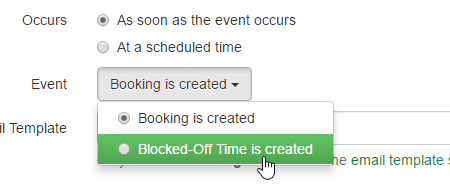
We will be adding many more events in the coming weeks. In fact, our goal is to do away with all other forms of emailing and make all guest-facing emails an event trigger. That way, you can completely customize when and what messages are sent to the guest.
We are also going to be adding SMS (text) messaging as a type of template that can be sent for triggers.
More Trigger Criteria
As we move all email messaging to event triggers, and unify around the trigger workflow, we've had to expand trigger criteria. And we've already started doing that.
Triggers now have a new criteria section where you can select adjacent night criteria or specific seasons.
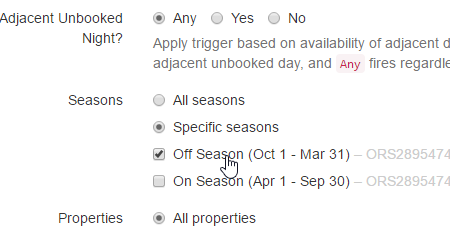
Targeting specific seasons is a very useful thing for triggers. After all, what if you want to send an email warning to guests that have booked Winter dates about a particular thing they need to know about? You can now do that using the season criteria.
We will be adding a lot more criteria to this area so that you can really fine tune when you want messages sent.
Blocked-Off Time Messaging
Another thing we ran into when moving all the email messaging to triggers is what to do about things like Third Party Alerts. This made us realize that Blocked-Off Time needed email templates and field codes as well, so we did both of those things.
You can now create custom email templates for Blocked-Off Time and have them sent on trigger events or specific times. There is also a new set of field codes available for Blocked-Off Time.
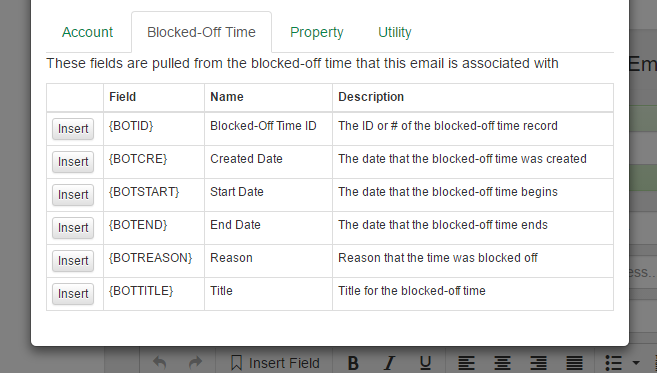
So if you want to send a particular email out when time is blocked off to a third party, you can do that now using a custom email template and the trigger event "Blocked-off time is created".
Third Party Alerts will continue to work as they do now, and we will make sure to cleanly migrate the existing ones to trigger events in future months, but you can already start crafting your own custom stuff using trigger events now.
Available Property Field Codes
Have you ever wished that your email messages automatically showed the guest what properties were available when they request unavailable time? Now you can.
We now have field codes (in bookings, quotes and inquiries) that will automatically insert a bulleted list of available properties for the current dates in question.
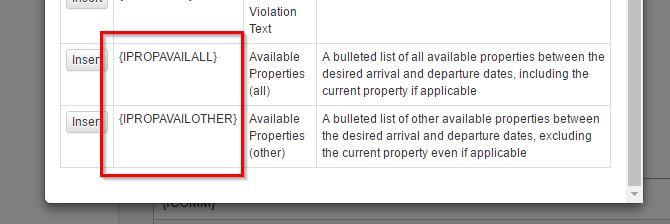
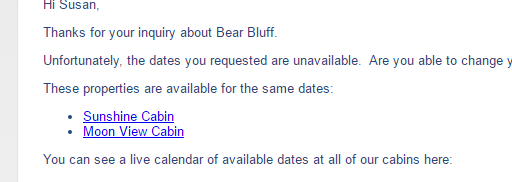
If the available property has a URL on file, it will include that as well so that the guest can click to open the property on your website directly.
You can pick a field code that includes or excludes the current property, based on the workflow you are trying to cover.
That's enough for now!
There were many other updates in this morning's release, but that's a big enough announcement for now. I'll be posting some other things in the next week and wanted to get these updates out of the way before we move to the bigger items.
7 ways to promote your vacation rental 17 replies

Google Places is now "Google My Business" and we have a bunch of cabins listed on there for free. They didn't have any problem about setting those up at all. In fact, I am building reviews there as well. It's tightly integrated with Google Maps. They do require that you "verify address" by sending a postcard from the Google My Business setup to the address you put down which means you have to be able to receive mail there.
7 ways to promote your vacation rental 17 replies
Google places told you you cannot advertise vacation rentals.
Major DNS attacks bring down many large internet sites, OwnerRez not affected, but some emails may have failed 0 replies
Right on the heels of the big HomeAway downtime, this morning we have a bunch more major outages around the internet. This time, it's far larger and part of a coordinated DDoS attack.
Major sites like Twitter, Spotify, Soundcloud, Airbnb and many others are down. Some of them are coming back but are limited in what they show. For instance, Twitter pages work, sort of, but images and video content are down.
OwnerRez is not affected by this. We use a distributed DNS provider with very solid uptime that actively works to watch for, and eliminate, DDoS attacks. This is not to say that we are impenetrable - no one is - but this particular attack did not affect our provider.
That being said, please bear with us as our email and payment systems do use other 3rd parties who, themselves, may have been affected. For instance, this morning our email provider went down as part of this and we had to quickly change our email routing to compensate until they come back online. Because of this you may have seen some "failed to deliver" emails between 7-8:30 am Eastern Time. If so, we apologize. You will need to send those emails again. We are also looking at putting in secondary "try again" email systems that monitor for this specific type of issue and try a secondary provider.
HomeAway is down right now - are you able to take bookings? Talk to your guests? 3 replies
I was gonna say the same. It's still pretty messed up. Thank goodness I don't use it for my inbox!!
HomeAway is down right now - are you able to take bookings? Talk to your guests? 3 replies
So today site is up (sort of), but cannot get into calendar or open existing emails via dashboard. Seems to work via app.
HomeAway is down right now - are you able to take bookings? Talk to your guests? 3 replies
100% agree. Nice article!
HomeAway is down right now - are you able to take bookings? Talk to your guests? 3 replies
UPDATE: HomeAway's systems just came back up after about a full hour of being down, but please read the below. The point is still well made.
The entire HomeAway empire - all their websites, payment systems, administrative panels - are down right now, and they've been down for a long time. You can't get to any of it.
This is why it's really REALLY good to not put all your eggs in one advertising/payment basket. Particularly when that company isn't a software company but an advertising company.
Long unannounced down-times like this are unacceptable for a company of HomeAway's size and position. Even if it were announced, it's too long to be acceptable. (And we're quite sure this wasn't planned.) HomeAway has almost 2,000 employees of which many dozens or hundreds are engineers. They should be prepared for contingencies with offsite servers ready to go online and read-only snapshots prepared.
Here at OwnerRez, we have watched HomeAway flounder, from a engineering perspective, for a long time. They have asked the entire vacation rental industry to put their trust (and all your properties, money, guests) into a system that is not supported by the type of software/engineering mindset that such a system needs.
Just ask yourself...
If you're using their "double blind" proxy email address, and you have a guest about to check-in, how do you communicate with that guest right this second or even an hour from now? What if that guest is trying to communicate with you??
Always use independent software to manage your vacation rentals, guests and payments. Always spread your advertising across different listing sites. And above all else, build your own website and brand and collect guest information (contact information) so that you can market and communicate with them directly.
Rant over.
Email addresses are no longer required 12 replies
Outstanding! Thank you...this is great.
Email addresses are no longer required 12 replies
Or for myriad other situations where email address just isn't at hand. A lot of our PM users have walk-in or phone guests where there is no email address. Sometimes elderly guests don't have email. All those situations are now covered. Bookings and quotes are hardened against there not being an email address so that the UI doesn't crash or have problems.
Email addresses are no longer required 12 replies
@Marinas Edge: Yes, it will still collect whatever email address it can, even the proxy ones, so that there is at least some temporary mode of communication. This is for listing sites that do not provide ANY email address (like HomeAway/VRBO) in the iCal feed. Airbnb is pretty unique in that they actually provide it.
Email addresses are no longer required 12 replies
Will it still bring across the long email address when synching from Homeaway or AirBnB?
Email addresses are no longer required 12 replies
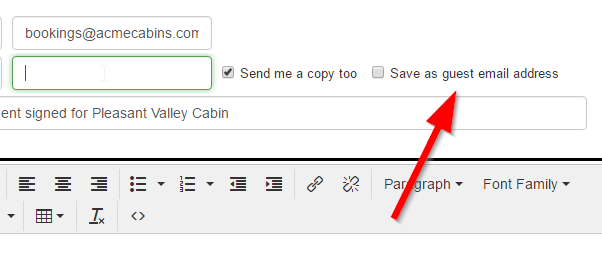
Yes, only at a special time. It shows when (a) the booking, more specifically the guest, has no previous email address and (b) if the email template has no other TO email address being used. This is done on purpose because we don't want 3rd party alert or other email addresses accidentally be stored for the guest.
Email addresses are no longer required 12 replies
I don't see that 'save as' checkbox when composing messages. Does that only show at a special time?
Email addresses are no longer required 12 replies
Hi everyone, quick little Monday update...
You can now create bookings and quotes to your heart's content without an email address.
We've always required the email address because a lot of the power of OwnerRez is in the automation and communication that occurs between you and your guests - triggers, payment follow-up etc.
With the increase in calendar syncing, the email address quickly became a hard gating item to creating bookings. So we tweaked a bunch of things so that you create bookings or quotes without entering an email address. This also allowed us to import bookings from HomeAway/VRBO as full bookings and not blocked-off time.
That being said, the quote acceptance and Book Now widget still do require the guest to enter an email address, and email addresses are required any time a credit card payment is processed. That doesn't gum up the booking process though since you can record payments other ways.
And of course, if you want to send email to the guest from OwnerRez (triggers? receipts?) you have to enter an email address when sending the email. To make that part easier, we've added a little "Save email address" checkbox on the email editor so that when you get an email address, it's that much easier to save for the future.
Additionally, we are working on a lot of updates to further ease the transition between imported bookings, from listing sites, and OwnerRez. We hope to bring in additional name, contact info, party size and charges from the emails that are sent to you by the listing site.
Smarter pro-rate settings and better rate selection across split-season bookings 0 replies
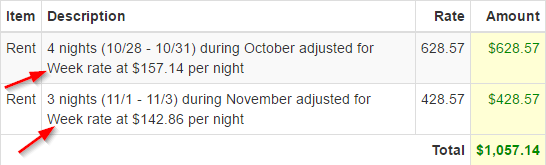
You can now specify exactly how each of your rates pro-rates in relation to the total number of nights in a booking. Before, pro-ration would simply be in every direction and it would only be used if the number of nights fit neatly inside the current season. You can now be more choosy about how pro-ration works.

And pro-ration now considers all of the nights in the booking even if a season line is crossed.
Suppose a guest wants 7 nights but it crosses the Spring/Summer season line. Previously, our rate engine would select 3 nights on one side and 4 nights on the other, neither side getting rated for a week even though it was in fact a week. Now, it will use pro-ration to smartly match rates against the entire booking at large intead of within each season split.
You can also specify a specific amount to use for the extra nights in a period when pro-rate is currently in use.
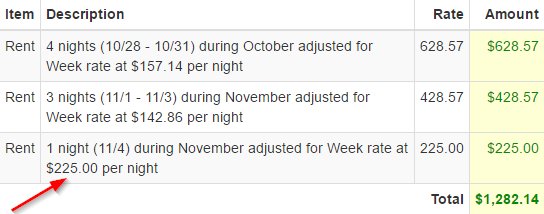
Suppose that you want every night after a week to be a flat $225. Instead of worrying if your other nightly rates will kick in at the right amount, or using a discount for 8+ nights, you can simply set 225 as your extra pro-rate amount.
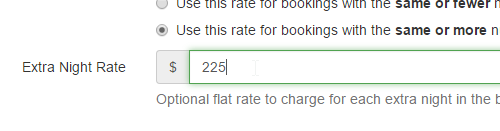
When the season hits that pro-rate behavior, it will use that special extra night amount for every night thereafter.
Whenever we update our rate engine, we do a large amount of testing so as to make sure that we didn't upset the apple cart. Our rate engine is at the heart of our system and impacts almost every operation. Please let us know if this change negatively impacted your rates or produced results that you don't understand. Hit the widgets on your website and make sure you're getting what you want to see.
Create quotes (or check rates) quickly right from the ribbon! 4 replies
@u0999: it's just on the owner side for now. Guest-facing is definitely what we want to add but there are some issues there with the embedded iframe (that the widget uses) where it could get cut off. ~Sam
Create quotes (or check rates) quickly right from the ribbon! 4 replies
does it also work for customer-facing ribbon calendar or only for owner-facing? Thanks
Create quotes (or check rates) quickly right from the ribbon! 4 replies
Hi everyone! As usual we've been designing and working on code a lot more than we've been sharing information or writing blog posts. We tend to do that!
But I wanted to take a second to breathe and mention something pretty cool that we just put out there.
The next time you look at your ribbon calendar, you'll notice that a little green button appears as you hover over the empty cells.
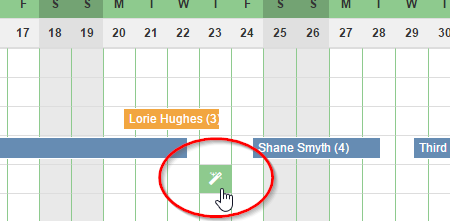
Give that a little click, and bam - up pops a quick quote box with a bunch of stuff prefilled for you including the rates and any rules or warnings that might prevent the guest from booking.
You can edit the quick quote and instantly see the rate and rules change.
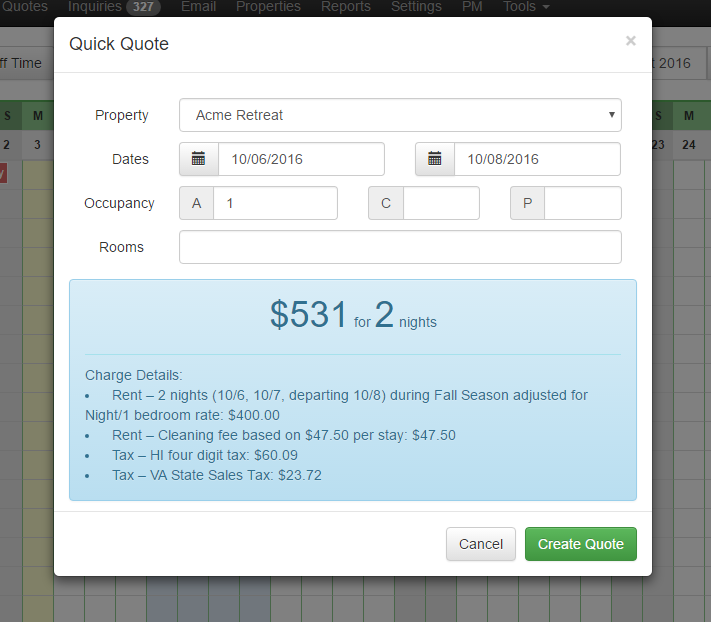
Just hit the ESC key on your keyboard to make the quick quote box disappear or X out of it.
There's also a new Quick Quote button at the top if you want to open it from there.

We're experimenting with making the ribbon and month views more dynamic. You'll notice that the property names on the right side of the ribbon view are clickable now as well. Our goal is to add a lot more functionality to these views to that you can quickly view what you want without having to click around so much.
What do you think?
Two Way Calendar (iCal) Sync and Convert Block to Booking 9 replies
We don't have a button for that yet, but it is coming in the next hotfix (sometime this week).
Two Way Calendar (iCal) Sync and Convert Block to Booking 9 replies

How do you force a calendar sync?
Two Way Calendar (iCal) Sync and Convert Block to Booking 9 replies

I have the same problem I think. I added a booking in OwnerRez for check-in on Sep 15 with check-out on Sep 18. It wouldn't sync in HomeEscape so I had to add it manually. I think it wouldn't sync because I already had someone checking in on Sep 18th.
https://www.homeescape.com/secured/calendar/48044566
HomeEscape Listing Site Integration Added! 4 replies
We've gotten one inquiry from there over the past 6 months. They certainly do need to work on their exposure but, like Chris said, at least they're not part of the Evil Empire and they have the good ole listing site we all used to enjoy. I can understand why they haven't really gotten more inquiries yet. Making it to the first page on Google searches is really hard when you have the entrenched big guys that have enjoyed a decade or more of page rank and millions of inbound links. It's gotta be hard to fight that as a new listing site.
HomeEscape Listing Site Integration Added! 4 replies

Any idea how they will monetize their product? According to their blurbs, they don't charge anyone anything.
I liked it when I could pay a couple hundred bucks and be listed alongside other rentals who paid a flat fee.