
RustDesk is our remote desktop solution. This guide will walk you through how to install it.
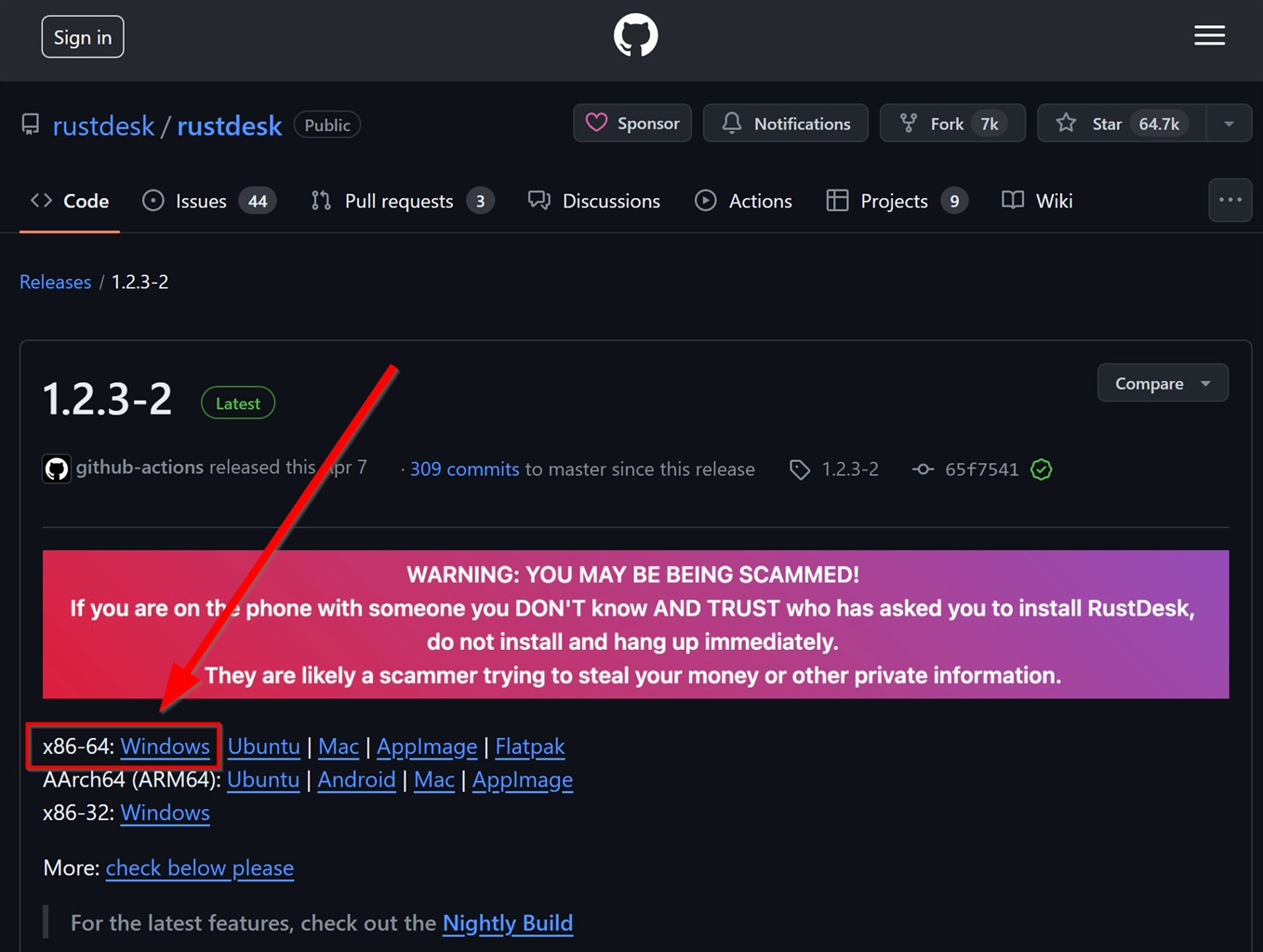
- Go to this link and download RustDesk for Windows.
- Click the download to open RustDesk.
- Inside RustDesk, click Install.
- On the install screen, click Accept and Install.
- Select Yes on the allow app popup.
- Once the installation is finished, click the pencil edit icon.
- In the settings menu, click Unlock security settings.
- Select Yes on the allow app popup.
- With security settings unlocked, select Use permanent password under Password, and click Set permanent password.
- Set the password to OwnerRez1 then click OK. NOTE: Please type this out exactly, as it is case-sensitive.
- Go back to Home by clicking Home and copy your ID. Email this ID to Paul Hall (phall@ownerrez.com).
RustDesk is now all set up! If you ever want to remote into your computer, you can use your ID and password via any RustDesk client to login. Works on Windows, macOS, Linux, iOS, and Android.