
The OwnerRez Support Center contains a significant amount of content, both internal and external. Standardizing this content provides users with a sense of familiarity, as our support articles should follow a consistent format. While much of our content currently does not adhere to the standards of this Content and Style Guide, we are actively working towards meeting them.
This Content and Style Guide will address the different types of support articles, other content, formatting, best practices, common issues and questions, and more. It is a preliminary document that will be updated and expanded over time.
- Best Practices
- Support Article Types
- Other Content
- Formatting
- Metadata
- Documentation Team Duties and Responsibilities
- Reporting Support Article Issues
- Redirects
- Common Issues & Questions
Best Practices
The Support Center represents OwnerRez. The trust that people place in our products and services cannot be understated. Standardizing support articles and content provides a sense of trust and familiarity for our users. It is important to follow a consistent set of best practices for support articles.
- OwnerRez is the correct name of our organization and should be used at all times.
- Incorrect names include Ownerrez, Owner Rez, OwnerRes, Ownerres, Owner res, Owner Res, and Owner Reservations.
- All Support articles must be readable, factual, emotionless, and free of marketing and editorializing.
- Adding a linked "Table of Contents" at the top of a support article through the use of anchors and links is recommended.
- Images should always contain "Alt text" or descriptions.
- Avoid unusual fonts. In fact, you should never apply a custom font family or font size at all.
- Stick with Headers 3 or 4.
- Heavily technical terms or jargon should be avoided.
- Emojis should be avoided.
- When useful, screenshots should be used.
- Acronyms, if used, should be spelled out first with the acronym enclosed within parentheses, for example, Google Vacation Rentals (GVR). The acronym can then be used for the remainder of a paragraph or two.
- OwnerRez infrastructure vendors (e.g., Postmark, Twilio, etc.) are never named but rather referred to generically as "email providers" or "SMS providers."
- Support article documentation should avoid documenting other platforms (Airbnb, Vrbo, and other integrations, etc.) through the use of non-OwnerRez screenshots. Instead, provide a link to that specific platform's support articles for the following reasons:
- Avoiding duplication: Partners or other platforms could update their process anytime. Linking to their documentation instead of copying it means we don't have to constantly check for and update changes.
- Accuracy: Their documentation should always be the most current and accurate source. When we maintain separate instructions, users may follow outdated steps that lead to confusion.
- Better use of our time: Our team can create more value by documenting our unique product features rather than recreating guides that already exist elsewhere.
- Exceptions to this guidance are "How to integrate" partner support articles, which may include duplicated screenshots (e.g., Turno, Pricelabs, etc.).
- Duplication across support articles should be avoided, as maintaining duplicate content is difficult. Instead, add crosslinks to related content.
- Integration partner support articles should avoid making outrageous claims that may imply OwnerRez is endorsing those claims.
- Outbound URLs or links should be removed from any support articles for partners without a signed agreement or deprecated payment method, partner, or vendor support articles.
- Partner Integration URLs, or slugs, should consist solely of the partner's name, such as our accounting partner, Accountable - https://www.ownerrez.com/support/articles/accountable. Do not include the support center navigational path in the URL.
Support Article Types
There are several different types of support articles. Let's review the most common types, their content, and when they should be used.
- Overview support articles aim to familiarize our readers with core concepts, explain the topic, and illustrate the business value of implementation. They should end with a "call to action" section or paragraph that includes links to the Setup & Connecting/Configuration and other secondary support articles on this topic, e.g., Triggers Overview, that transition the reader to the next steps.
- The Setup & Connecting or Setup & Configuration support articles are the "how-to" support articles, providing specific instructions about establishing that connection or configuration.
- Setup & Connecting support articles explain how to connect with external partners, e.g., Google Vacation Rentals Setup & Connecting.
- Setup & Configuration support articles explain how to configure specific OwnerRez tools, e.g., Triggers Setup & Configuration.
- Common Issues & Questions support articles contain frequently asked questions (FAQs) and common questions and answers about the topic not covered elsewhere in a question format. Articles with more than ten to fifteen questions should have categories, such as Rates and Availability, Bookings, Messaging, Financial Transactions, Property Settings, etc., e.g., Airbnb Common Issues & Questions.
- Other Support Articles contain information about specific topics or processes, e.g., Canceling a Booking.
Other Content
- Monthly Product Update Blog Posts detail the weekly releases and include new features, enhancements, and bugs, written by the Documentation team. See an issue? Contact docs@ownerrez.com to report.
- Vacation Rental Guides are public articles on various topics related to the short-term rental business, designed to enhance SEO performance. Contact Paul Hall at phall@ownerrez.com regarding these articles.
Formatting
The Rich Text Editor (RTE) provides a "what-you-see-is-what-you-get" editing area to make it easier to create formatting that is valid HTML markup for web browsers. With the abundance of RTE tools available, it can be appealing to stray from the default or standard formatting. However, using the RTE default formats and fonts actually reduces unintended consequences and funky webpage displays.
It is recommended that you save your support article frequently while editing. Nothing is more frustrating than losing all of your hard work. Save often.
Images
Images or screenshots play an important role in conveying knowledge about concepts and processes.
- OwnerRez screenshots should not include navigational menus as they may change, focusing solely on the process.
- Screenshots should not include excessive markup labels or text overlays.
- Bounding boxes and arrows should be in Red, with no Drop Shadow, preferably with a line thickness of 4.
Insert images by clicking on the upper left Upload Images or Files icon.
The pop-up allows you to "paste," "drag and drop," or select an image or file (e.g., PDFs, etc.) and provides the opportunity to add your "alt text" or Description for the image.
Why add alt text or descriptions for your image? "Alt text" or the description field contents are the written text that appears in place of an image on a webpage if the image fails to load on a user's screen. This helps screen-reading tools describe images to visually impaired readers and allows search engines to better crawl and rank your webpage. When possible, alt text or descriptions for your image should be included.
Images are inserted with a center alignment by default and for a reason. While it's tempting to change the alignment to either right or left, the default center alignment ensures that images are displayed consistently on all devices.
Links
Incorporating links to other web pages or support articles can improve comprehension and support center navigation.
The easiest way to add a link is to highlight your text and click on the Insert/edit link icon.
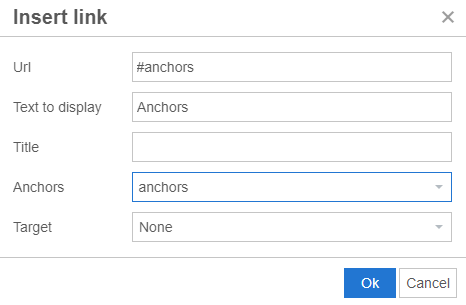
The Insert Link pop-up allows you to add or edit the link text to display the actual link and the target. URLs need the https:// prefix to work correctly, so it's easiest to actually copy and paste the URL into that field rather than attempting to type it out manually.
The Target dropdown determines whether the link takes you directly to the linked webpage by selecting None or if it opens in a new tab by selecting New window.
Conversely, you can remove the link by selecting your link and clicking on the Remove link icon.
 Anchors
Anchors are links within a support article or webpage that act as a linked table of contents at the top of the article. They are essential for support articles and should be included whenever possible. Learn more about Anchors by reading the Header Anchor Links Now Available for Hosted Websites section from the August 23, 2023, Product Update Blog Post.
2. Navigate to the text at the top of your content (the table of contents section), where you add a link to your Anchor. The Target should be None.
 Lists
Lists
Sometimes, the best way to present information is in a list.
- Bullet lists should be used when the order of items is unimportant but can still reveal the relationship between items. This list is an example of a bulleted list. Add a bulleted list by clicking on the Bullet list icon.
- Numbered lists should be used when the order of steps is important; in other words, the information would not be understood if the items were written in a different order (steps for connection, specific sections, etc.). The Anchors section is an example of a Numbered list. Add a Numeric list by clicking on the Numbered list icon.
The Numbered list is known to be difficult to work with at times.
Tables
Adding a table to your support article allows you to arrange data into rows and columns. Some OwnerRez support articles contain "hard-coded" tables, such as Field Codes, that only Engineering team members can edit. Another example of support articles that contain a regular table is Costs & Fees.
You can add a table by clicking on the Table icon and selecting the number of columns and rows desired.
You can edit the table by clicking on the table and using the table edit menu.
Unless you are comfortable with HTML, it's recommended that you stick to Table defaults.
Header Tags
Header tags, also known as heading tags, are used to separate headings and subheadings and improve a web page's readability. They rank in order of importance, from H1 to H6, with H1s usually reserved for the article title only.
Header Tags can be applied to text by first highlighting your text and then clicking on the Header dropdown menu.
Let's review how header tags are used in OwnerRez support articles.
- Paragraph is used for regular content.
- Heading 1 is never used. The title of the article is automatically displayed as a Header 1 on support articles.
- Heading 2 is never used.
- Heading 3 is used for important topics. Notice how the Best Practices, Support Article Types, and Formatting sections in this article use Heading 3.
- Heading 4 is used for nested topics within Heading 3. The Images, Links, and Anchors sections in this article use Heading 4.
- Heading 5 is not used often, as it is difficult to see that it is a heading at all. If used, we suggest that you use bold text for any Heading 5 text.
- Heading 6 is never used.
- Preformatted is very similar to (and perhaps the same as) Pre in the Formats section dropdown menu.
Notice how our linked "Table of Contents" at the top of our support article represents headings and the importance of topics. Header 3 contains the main topics, with Header 4 sub-topics nested within.
Formats
Adding specific formats to some text may draw attention to some important information or content. The formatted text is displayed in a larger font than the regular default, making it eye-catching.
You can add formats to specific text by first highlighting your text and selecting the desired format from the Formats dropdown menu.
See examples of the different Formats displayed below.
Code
The Code format is not used often, but it is eye-catching. Sometimes, it is used for a "Coming soon!" section in support articles.
Pre
Pre or pre-code is a plain-text format that is often used for code examples (e.g., Example - Advertiser Index), or text to be easily copied (e.g., Replying by Email section of Reply to inquiry with a bookable quote).
Blockquote
Blockquotes are rarely used.
Alerts
Info Alerts contain friendly information.
Warning Alerts contain information that users should be aware of.
Danger Alerts contain important information that users need to be aware of, such as pitfalls and exceptions.
Success Alerts are rarely used but could be used to indicate that a task or process is completed.
Callouts
Info Callouts contain friendly information.
Warning Callouts contain information that users should be aware of.
Danger Callouts are reserved for more even important information than Danger Alerts.
Success Callouts are rarely used but could be used to indicate that a task or process is completed.
Callout (condensed) formats are rarely used as the font is the default size and not very noticeable.
Callouts (condensed) Info displays friendly information.
Fonts
The Rich Text Editor (RTE) default font is 11 pt Helvetica Neue. We recommend that you stick with the default font and instead use Header Tags and Formats to draw attention to important content. Using the RTE default font actually reduces unintended consequences and funky webpage displays.
Alignment
The Rich Text Editor (RTE) default alignment is left, and we recommend that you keep it that way. Using the RTE default alignment will reduce unintended consequences and funky webpage displays.
Clear Formatting
Sometimes, text in the Rich Text Editor (RTE) won't act or display correctly, especially if you copied and pasted your content from another platform.
You can clear the formatting of selected text by "selecting or highlighting" the offending text and clicking on the Clear formatting icon.
It definitely won't hurt to save your support article before you attempt additional editing after this process.
Metadata
Adding meta descriptions and keywords improves the Support Center's search visibility, helps users quickly understand article content, and supports internal search accuracy, enhancing overall discoverability and user experience. OwnerRez recommends adding both to all support articles to enhance Search Engine Optimization (SEO) and improve internal searching.
Description
A meta description is a short summary (approximately 150–160 characters) of a web page's content, appearing in search engine results beneath the page title and helping users decide whether to click.
- Meta descriptions are not included in support articles as they can override default search snippet displays.
- Meta descriptions can be included in marketing-type web pages where you always want the same search snippet to be displayed.
Keywords
Meta Keywords are a list of relevant terms or phrases that describe the content of a page, separated by commas. Although most modern search engines no longer use meta keywords for ranking, they can still help with internal search or tagging systems. Use specific, relevant keywords related to the article's topic.
Documentation Team Duties and Responsibilities
Currently, the OwnerRez Documentation team is responsible for the following.
- Public Support Center support articles
- Product Update Blog Posts
- See the Support Doc Changelog to see what support articles have been added or edited.
Documentation is not responsible for the following.
- OwnerRez in-app language. Submit an Internal Request to report in-app language needs/fixes/suggestions.
- The OwnerRez public website. Contact Paul Hall at phall@ownerrez.com regarding the public website.
- Vacation Rental Guides. Contact Paul Hall at phall@ownerrez.com regarding Vacation Rental Guides.
Reporting Support Article Issues
Reporting support article issues is imperative to the success of the Support Center. You can report support article issues in two ways:
- Email the Documentation team at docs@ownerrez.com.
- Include a link to the OwnerRez support article.
- Include information about how to fix the support article, such as improved instructions, links to another support article, etc.
- Add screenshots if helpful.
- Support tickets
- In an internal comment, explain why Docs needs to be aware of it. Your note should start with "Docs" in bold so that it stands out from the rest of the ticket chatter. Do not CC a member of the Docs team.
- Select the “Notify Documentation” checkbox in the left ticket information sidebar of Zoho support tickets.

The Documentation team may add GitHub links to support tickets or emails that other OR team members do not have access to. These GitHub links should indicate to OR team members that the ticket or email information has been added to a "list" of necessary or suggested support article changes.
Redirects
Creating redirects may be necessary in several key situations, such as content relocation, restructuring, domain changes, or the consolidation of duplicate content. Properly implemented redirects ensure a seamless user experience while preserving SEO value, preventing 404 errors, and maintaining flow to the Support Center even as its structure evolves.
Most OwnerRez team members do not have permission to create redirects, but they can request one by contacting the Documentation team.
Create a redirect by navigating to the OwnerRez Admin Dashboard > SEO > Redirects + Create Redirect. Below is the general process for creating redirects.
- Keep multiple windows or tabs open to edit/delete the support article while simultaneously creating the redirect in another window; otherwise, the redirect will send you to the newly redirected article before you can delete it.
- If you inadvertently create the redirect first, you can always search the support docs index to locate the old support article.
- The Redirect To field defaults to Support article.
- The URLs in the From URL field begin with "/support" onward.
- It's easiest to copy the complete URL and then delete the unnecessary text (everything before "/support," usually "https://www.ownerrez.com").
- Site Redirects are displayed/sorted by the Redirect page by creation date in reverse chronological order.
- Select the new doc to redirect to from the Support Article dropdown list.
- Check the Permanent redirect box. Click Save.
- Test the redirect by clicking on the old URLs to verify that they actually redirect to the correct doc.
It is possible that the support article you are creating a redirect for may already have a redirect, which will prevent deletion of the support article. There are a couple of ways to resolve this.
- Resolve the previous redirect before you complete the new redirect by clicking on the redirect link to update it.
- If it helps, you can append the slug with "-OLD" and save, but you'll still have to resolve the old redirect.
The Missing Page Log, sorted by count, lists all of the OR broken links that people have attempted to click on. OwnerRez team members may have to browse the log to locate a broken link.
Common Issues & Questions
How can I troubleshoot copied and pasted content from other platforms (e.g., MS Word, Google Docs, Webpage, etc.) that is not displaying correctly?
Copying and pasting content from other platforms can be problematic, resulting in unintended consequences and funky webpage displays.
When copying and pasting content from other platforms, follow these steps.
2. Save your support article before you attempt editing.
Sometimes it's just easier to write directly in the Rich Text Editor (RTE) to avoid those issues.
How can I fix the vertical distance between lines of text or line spacing?
Sometimes, line spacing or the vertical distance between lines of text in the Rich Text Editor (RTE) won't act or display correctly, especially if you copied and pasted your content from another platform.
First, try clearing the formatting, and while your text is still selected or highlighted, reset the header tags a couple of times. Weird, but it works.
Don't forget to save.
What does the Order field do, and what number should I put in it?
The Order field, located at the top of the Rich Text Editor (RTE), controls the sort order of support articles in the Support Center's left navigation menu.
But what number should be added to the Order Field?
When determining the number to add to the Order field, check out the Order field numbers of the support articles displayed before and after the location where you want your support article to appear in the Support Center's left navigation menu and choose a number in between.
It's recommended that you select a number that allows future expansion of support articles to be added around yours. Adding adjacent numbers to the Order field doesn't allow for much expansion for future support articles. Ideally, support article Order fields are 20-25 numbers apart.
For example, this support article Order number is 50, the Support Doc Change Log Order number is 25, and the Internal Domain Names for "Live Websites" in Test Environments Order number is 100. The Order field numbers for these support articles result in the following Support Center left navigation menu display.