
AllStay.ai is a property management platform for short-term rentals that includes automated cleaning job scheduling, crew/staff coordination via its iOS and Android apps (with SMS fallback), AI-powered chat for property managers, and real-time push notifications. Connecting OwnerRez enables automatic booking sync and cleaning job creation so your crew always knows what's coming up.
Steps for Integration
Follow the integration steps below to connect your OwnerRez account with AllStay.ai. Make sure you are logged into your OwnerRez account in your browser before starting.
Step 1: Log in to AllStay.ai
Go to allstay.ai and log in to your account. If you don't have an account, create one first.
Step 2: Navigate to Listings
From the dashboard, click the Listings tab in the left sidebar.
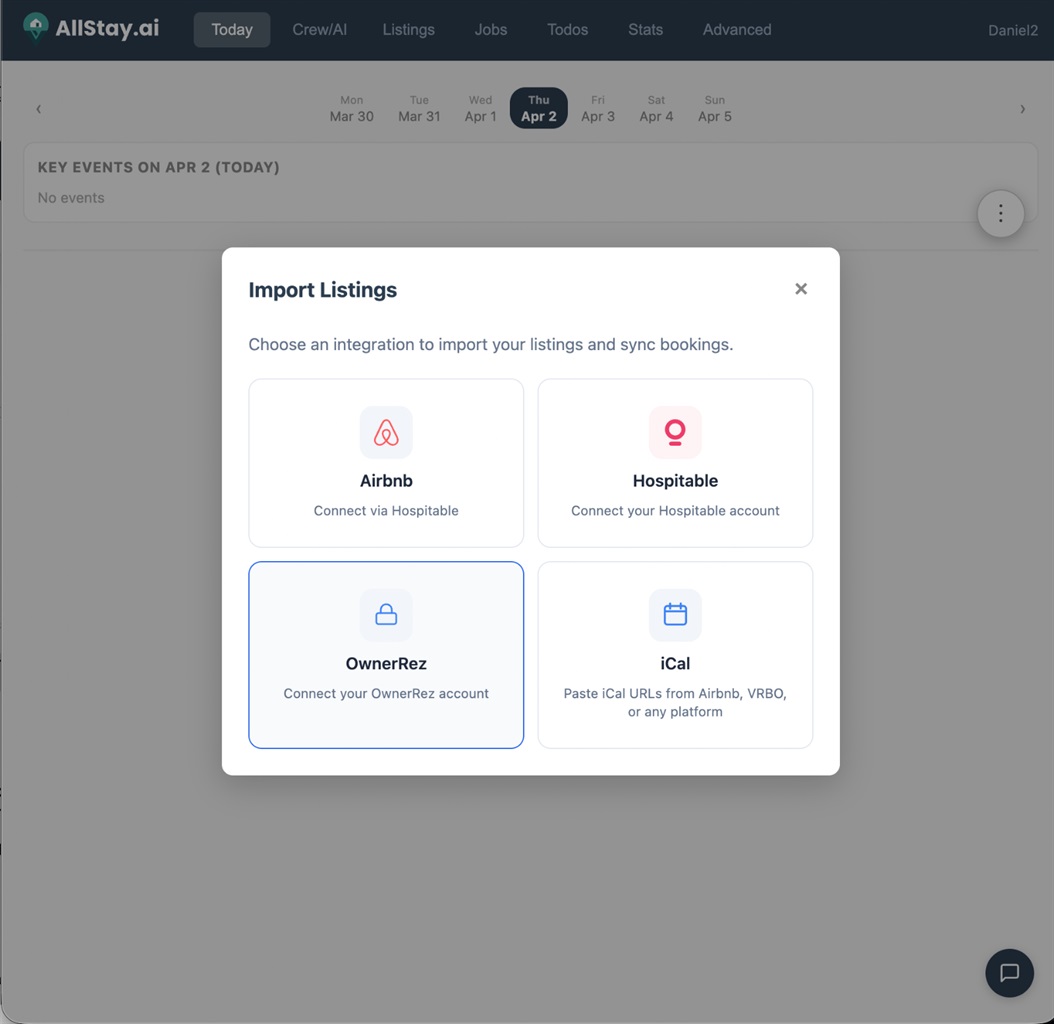
Step 3: Press "Import Listing" then “OwnerRez”
Click the "Import Listing" button. In the dialog that appears, select "OwnerRez" from the list of available connections.
Step 4: Authorize AllStay.ai
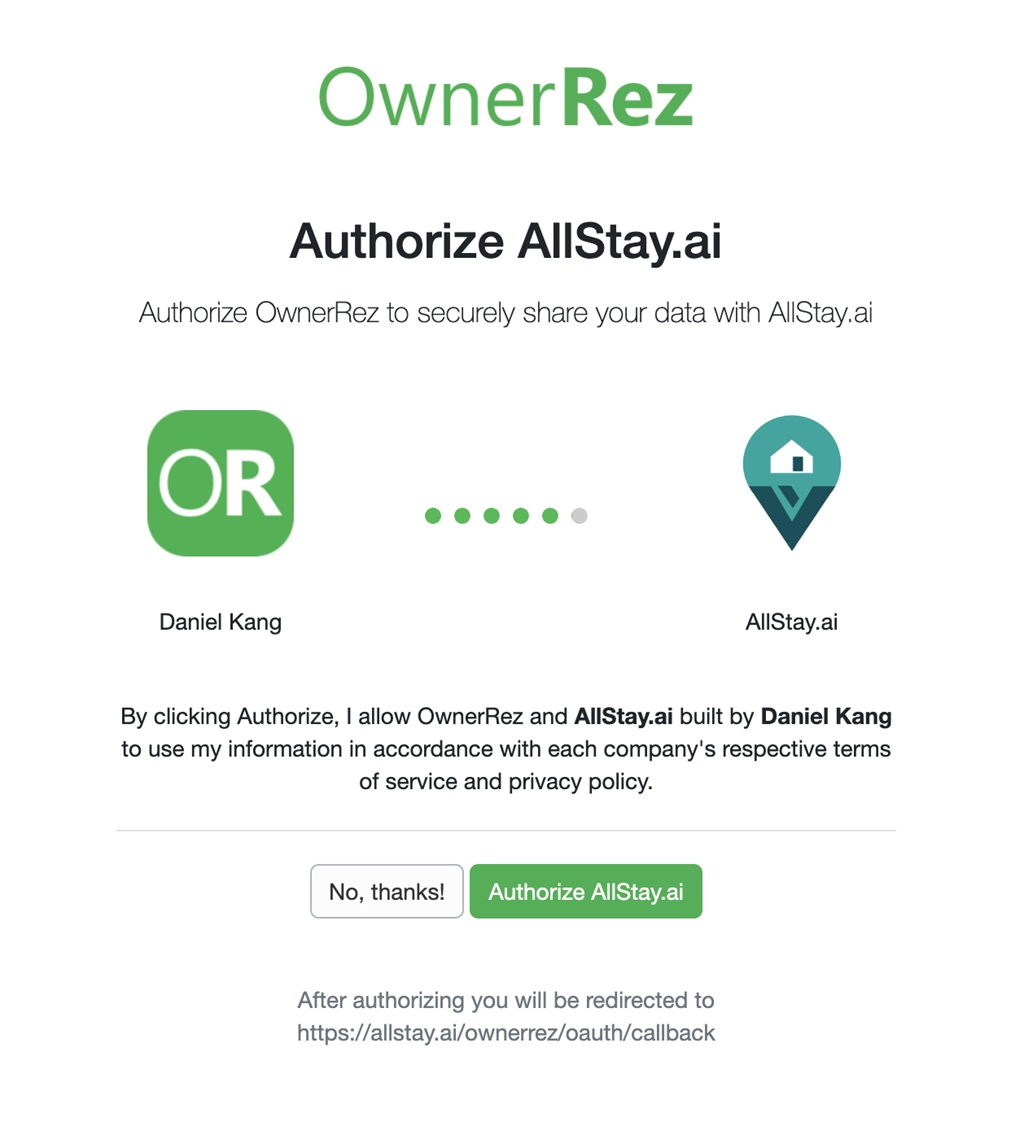
You will be redirected to OwnerRez's authorization page. Review the permissions and click "Authorize" to allow AllStay.ai to access your OwnerRez data.
Step 5: Select properties to import
After authorization, you will be redirected back to AllStay.ai. A property selection screen will appear, showing all your OwnerRez properties. Select the properties you want to import and click "Import".
Note: If you already have listings set up via iCal, you can merge an OwnerRez property into an existing listing instead of creating a duplicate. The merge option appears next to each property. When merged, the OwnerRez connection replaces iCal sync for richer data (guest names, etc.), and the iCal presence is automatically disabled.
Step 6: Done — your listings are imported
Your selected properties will be imported, and an initial booking sync will begin automatically. Depending on the number of listings and bookings, this may take a few minutes to complete. You will see your listings populated with bookings, guest names, and reservation details.
What Data is Transmitted
Data synced from OwnerRez to AllStay.ai- Booking Data — Reservations, check-in/check-out dates, booking status (confirmed, cancelled, inquiry), reservation codes, and pricing information
- Guest Data — Guest names and booking details
- Property Data — Listing names, photos, addresses, and coordinates
- Booking sync — Bookings are synced periodically via API and in real-time via webhooks. AllStay.ai uses booking data to auto-schedule cleaning jobs, notify crew via the mobile apps, and display calendar availability.
- Cleaning job creation — A cleaning job is automatically created for each booking's checkout date and assigned to your crew. Crew members receive push notifications on the AllStay.ai iOS/Android app.
- Webhooks — OwnerRez sends real-time notifications to AllStay.ai for instant booking updates.
Support
Need help? Contact support@allstay.ai.
Disconnecting/Removing Data
Remove imported data:
To remove imported data from AllStay.ai, navigate to the Listings tab and click "OwnerRez". In the import dialog, unselect listings to remove, press “Import”. This will remove all the data that you have imported.
Disconnect AllStay.ai
To disconnect OwnerRez from AllStay.ai, navigate to the Listings tab and click "OwnerRez". In the import dialog, you will see “Disconnect OwnerRez”. This clears the OAuth token and disables sync on all OwnerRez-connected listings. Your listings and historical bookings are preserved but will no longer receive updates. If you want them removed, please unselect the listings, then import. After removing listings, return to the import dialog and click 'Disconnect OwnerRez' to fully revoke the connection.