Here is an example of a Weather Widget you can add to any OwnerRez-hosted site by following the steps below:
Example Site
How to add this to an OwnerRez-hosted site:
- Go to the OwnerRez hosted site and select the page you would like to add the Weather Widget to. Or if you'd like a dedicated Weather page, choose Create Page > Custom.
- Set the title to Weather, menu display text to Weather, and the slug to weather.
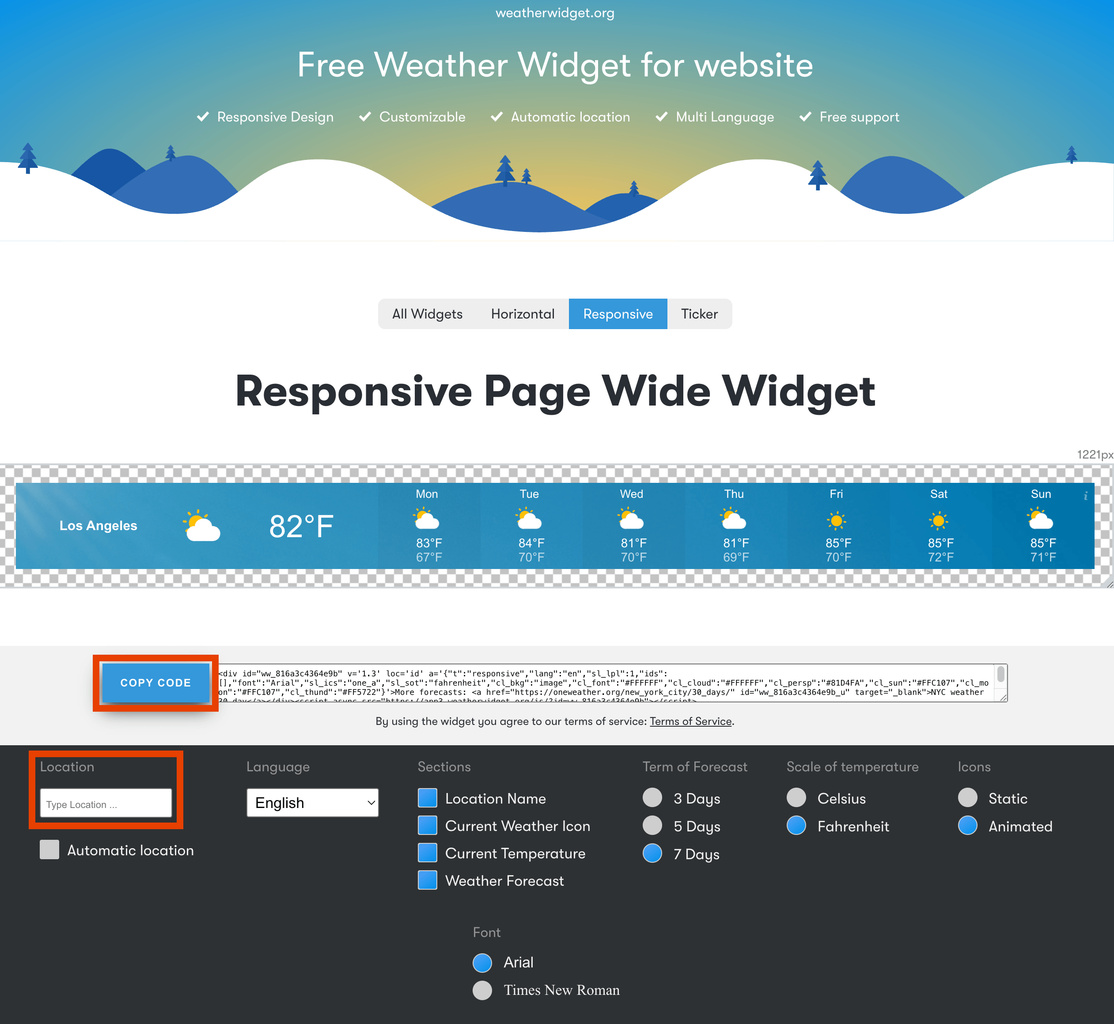
- The next step is finding a Weather Widget you like and copying the code. One free option is https://weatherwidget.org/. If you go to that website and enter your location, it will display what the widget will look like and the code you need to copy. For example:
- Once you have copied the widget code, go back into OwnerRez and in the content box, click the Edit HTML Source button, then paste the code and click Save and Close.
For example, your code will look something like this:
<div id="ww_816a3c4364e9b" v='1.3' loc='id' a='{"t":"responsive","lang":"en","sl_lpl":1,"ids":[],"font":"Arial","sl_ics":"one_a","sl_sot":"fahrenheit","cl_bkg":"image","cl_font":"#FFFFFF","cl_cloud":"#FFFFFF","cl_persp":"#81D4FA","cl_sun":"#FFC107","cl_moon":"#FFC107","cl_thund":"#FF5722"}'>More forecasts: <a href="https://oneweather.org/new_york_city/30_days/" id="ww_816a3c4364e9b_u" target="_blank">NYC weather 30 day</a></div><script async src="https://app3.weatherwidget.org/js/?id=ww_816a3c4364e9b"></script>Note: Don't worry if the Weather Widget doesn't show up in the content box; it will work show up on your live site once saved. - Check out your test site or live site (if you have set up your own domain) to see the results! This is what yours should look like if you followed the steps correctly: Example Site