
Model Context Protocol (MCP) is a standard that allows AI assistants, such as Claude.ai, to securely connect to your OwnerRez account and turn everyday questions about your vacation rental business into answers, analysis, dashboards, and files using the data already in your OwnerRez account. For more information, see our MCP Overview support article.
When you connect to the OwnerRez MCP, Claude.ai can read your account data, including bookings, properties, guests, messages, rates, and calendars, and answer questions about it. You can ask for occupancy summaries, upcoming arrivals, or guest details in plain language instead of running reports or searching screens yourself.
The OwnerRez MCP has read-only access, so your AI assistant cannot add, change, or delete data or send guest messages while providing valuable business insights into your vacation rental business. Use of and connection to the OwnerRez MCP are limited to OwnerRez account owners and Team Access Full Admin Staff members.
You remain in control of the connection and can disconnect it at any time in your Claude.ai account settings.
Steps for integration
Add a custom connector to Claude.ai and include the OwnerRez MCP URL https://api.ownerrez.com/mcp to connect to your OwnerRez account. Learn more about Claude Connectors by watching Getting started with connectors in Claude.ai.
In Claude.ai, click on the + > Connectors > Browse or Manage Connectors.
Add a custom connector by clicking the + Add button, then Add Custom Connector.
Add the name of your Custom Connector, and enter the OwnerRez MCP URLhttps://api.ownerrez.com/mcp, then click Continue.
Claude AI will auto-detect how to sign in and add the connection.
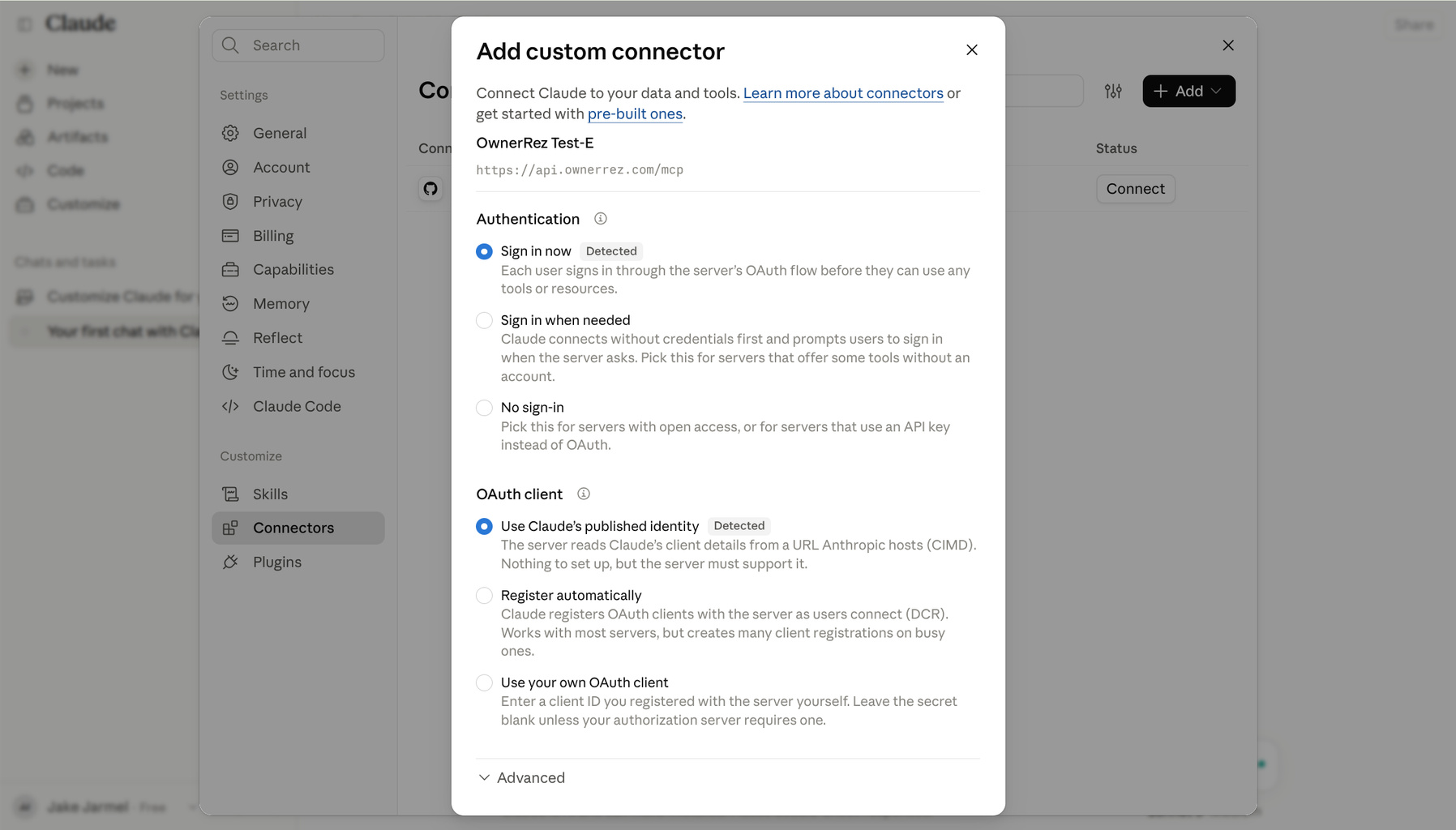
Scroll down and click Add.
Click the "Connect" button to connect to your OwnerRez account.
After clicking connect, the browser redirects to OwnerRez, where you get the standard OwnerRez login screen. After logging in to OwnerRez, you will see the authorization to connect your account to Claude.ai.
Types of Data Transmitted
- Bookings, guests, and properties by name, date, or email ("who is checking in at Mountain View this weekend?")
- Read the details of a booking, a guest, a property, or a quote
- List bookings for a property or date range
- Search the OwnerRez support articles and API reference to answer how-to questions