
Welcora helps rental hosts and property managers coordinate guest experience, smart devices, and property operations.
Connecting OwnerRez lets Welcora use your property and reservation information with its guidebooks, guest pre-checks, access workflows, turnovers, and inspections. See Welcora’s OwnerRez integration guide for the current connection overview.
Steps for Integration
You need an active OwnerRez account, permission to authorize the connection, and a Welcora account with access to integrations. Create a Welcora guidebook for each property you want to connect.
- Find OwnerRez in Welcora
Sign in to Welcora and select Integrations from the sidebar. Find and select OwnerRez.
- Enable the integration
Enter an optional Internal Label to identify the connection, then click Enable. A label can help distinguish multiple OwnerRez accounts.
- Connect OwnerRez
Click Connect OwnerRez.
- Authorize Welcora
Sign in to OwnerRez if prompted. Review the authorization screen and click Authorize Welcora. You return to Welcora.
- Attach a guidebook to each property
Allow your properties to import. On the integration’s Listings tab, find a property and click Attach Guidebook if you already have a guidebook added to Welcora. Alternatively, click Create Guidebook if it is not yet in Welcora.
- Save the guidebook selection
Select the guidebook for that property and click Save changes. Repeat for each property you want to connect.
- Check your reservations
Open the Reservations tab and check that upcoming bookings appear against the correct listing. Compare a booking’s guest name and arrival and departure dates with OwnerRez before sharing the guidebook.
Sharing the Guidebook with Guests
Connecting OwnerRez and assigning a guidebook prepares the property and booking information. You can use OwnerRez’s automated messaging to deliver the guidebook link to guests. For OwnerRez instructions, see Email Templates and Triggers Setup & Configuration.
- Copy the guidebook link
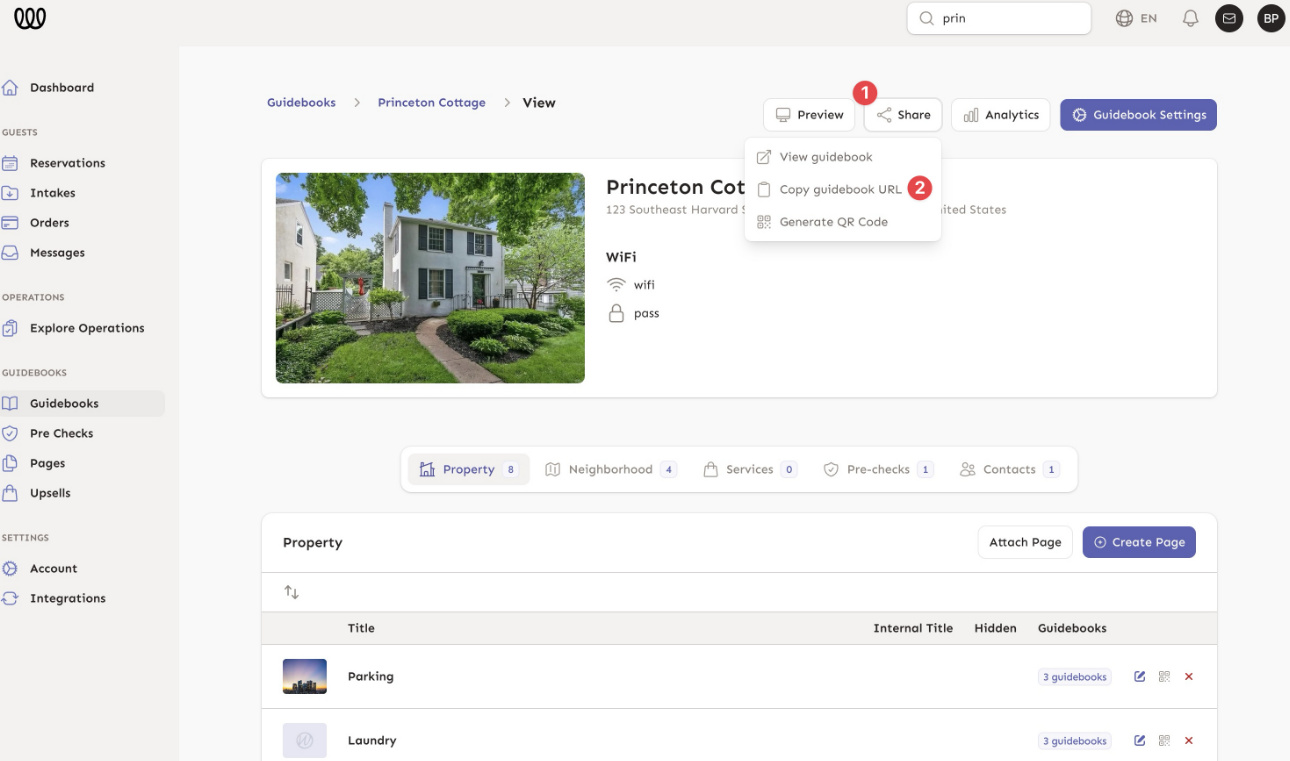
In Welcora, open Guidebooks and select the property’s guidebook. Click Share, then Copy Guidebook URL.
- Add the link to a message template
In OwnerRez, go to Settings > Messaging > Templates and add the link to the appropriate guest message. Use the correct guidebook URL for each property.
- Set up the trigger
Configure the corresponding trigger if the message should send automatically. Review its timing and property criteria so guests receive the right link for their stay.
- Preview the message
Preview the message for a booking and open its guidebook link to verify the destination before enabling delivery.
FAQ
Do I need a guidebook for each property?
Yes. Create a Welcora guidebook for each property you want to connect. New users can start from an existing house manual during Welcora onboarding.
What do guests see?
Guests open the guidebook link from your message. The guidebook asks for their check-in date, the last name on the booking, and optionally their own name and email address. They then select Login.
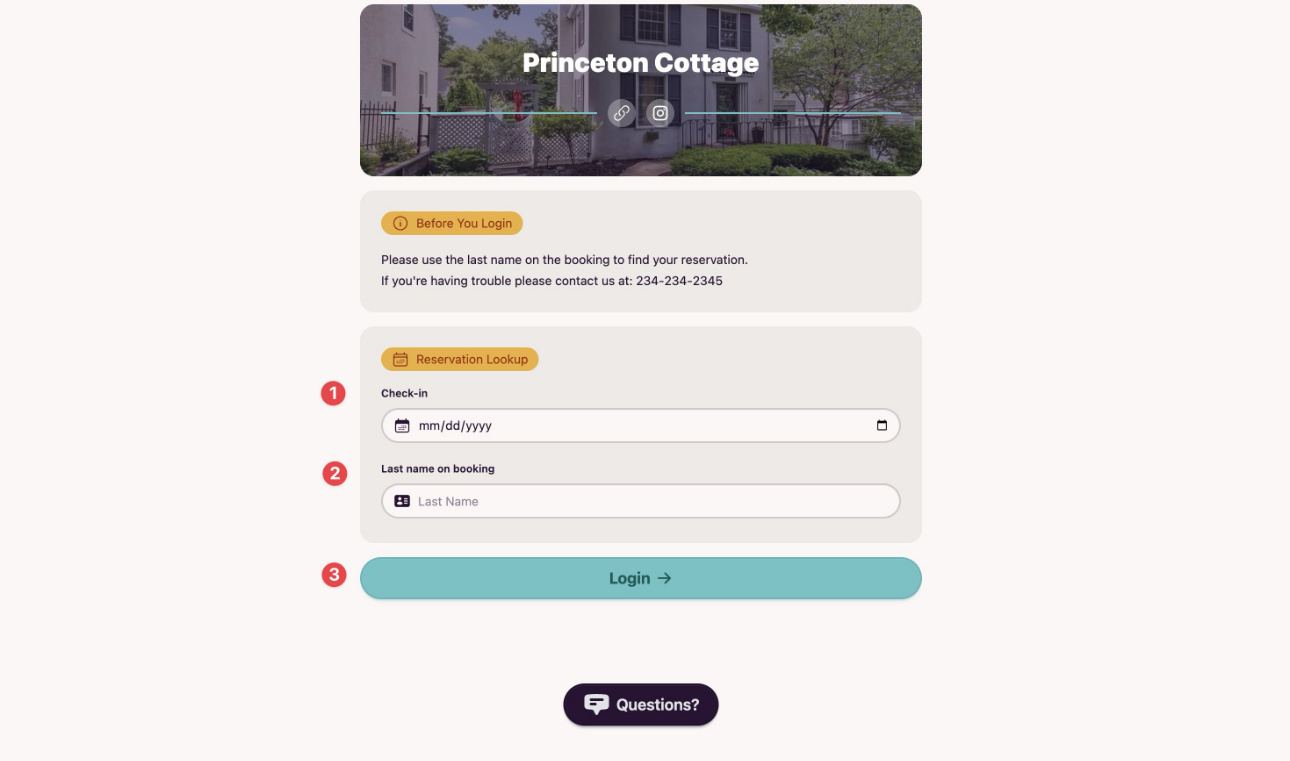
Guests complete the required pre-checks you have configured, such as house-rule acceptance or waivers. Optional steps can be skipped. Protected guidebook content becomes available after the required steps are complete. The guidebook can then provide arrival instructions, property information, local recommendations, and available services. Learn more about guest pre-checks.
What do I see in Welcora?
Outside of guest contact information, Welcora also provides intake records and completion information for guest pre-checks, including submitted evidence and electronic signatures where configured.
For operators using Welcora’s wider features, reservation information also supports configured access, operational workflows, and turnover management.
Do other Welcora features need setup?
Yes. Review and enable the Welcora workflows you want to use for each property. Guest forms, guest rules, electronic signatures, smart devices, and operational tasks require their own configuration, which you set up in Welcora separately from the account connection.
Support
Questions about Welcora? Visit welcora.com or see Welcora’s OwnerRez integration guide.
What Data is Transmitted
According to Welcora’s published integration guide, these categories flow from OwnerRez to Welcora:
- Property and listing details
- Reservation dates and guest details
- The relationship between each reservation and its listing
Welcora sends access codes back to OwnerRez.
The exact imported fields available depend on the source record and account configuration. Guest pre-check information is collected and reviewed in Welcora.